 Click on the picture to visit a gallery of screenshots.

Goal
The app allows you to save and share funny or important moments in the lives of your children in a simple way. The events can include a photo and a brief description and any additional comments. They will automatically be provided by the correct age.
Events can be posted to your Facebook timeline (iOS 6.0 or above) or emailed to family and friends with a press of the button so it’s very easy to share your favorite moments.
Also, growth data (height and weight) of your child can be stored, for example, if you’ve just been to the health center.
A booklet can be created and mailed, containing all events and growth data of your child.
You can personalize the app by adding your own picture to the home screen (see the action menu in the same screen). You can also change the sort order of children, events and growth data. These are changed in the default Settings app.
The app is built for iPhone and iPod Touch, but can also be run on iPad.
Control
Control of the app is simple and intuitive. On the home screen, you can choose a child by tapping the appropriate name. From the detail screen of the child you can get to the events or growth data of that child by means of two buttons. You can view the details of an event by tapping the appropriate line.
Adding new data (a child, event or growth data) can be done by the plus-button on the top right of the screen. An existing event can also be changed, for example if you have made a mistake or want to change the picture later on.
Sharing
A booklet containing all events and growth data can be mailed from the detail screen of your child.
Emailing a certain event or sharing it to your Facebook timeline is possible from the detail screen of the event in question. The appropriate buttons are located at the bottom of the screen; scroll down a little to see them.
Exporting data
It’s possible to secure your entered data (except for the pictures) by exporting them. You can mail the events and growth data to yourself in csv format. Csv-files can easily be viewed or imported into for example Excel or Numbers.
Deleting data
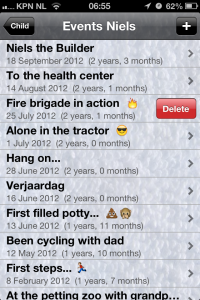
Deleting things such as events, growth data or even children can be done by wiping the appropriate line in an overview screen from left to right. You will see a red button ‘Delete’ with which you can delete the line. See the screenshot below for an example.
In-app purchase
The free version of the app supports saving of growth data and a limited number of events for one child only. If you want to add more than one child or store more than 8 events, you can unlock that feature by means of a one-time purchase.
See also the frequently asked questions.